

The Prompt-Hub allows you to manage prompts, fetch specific versions of the prompt, and compile prompts with variables.Documentation Index
Fetch the complete documentation index at: https://docs.openlit.io/llms.txt
Use this file to discover all available pages before exploring further.
Key features
- Prompt Management: Create, edit, and track different versions of your prompts.
- Versioning: Supports major, minor, and patch updates for clear version management.
- Dynamic Variables: Use
{{variableName}}placeholders that are dynamically replaced at runtime. - AI Prompt Improvement: Use Otter to review a prompt, suggest targeted edits, and accept or decline changes directly in the editor.
- Statistics: View download stats and version history directly in the UI.
Get started
List prompts
Get a quick overview of all prompts created.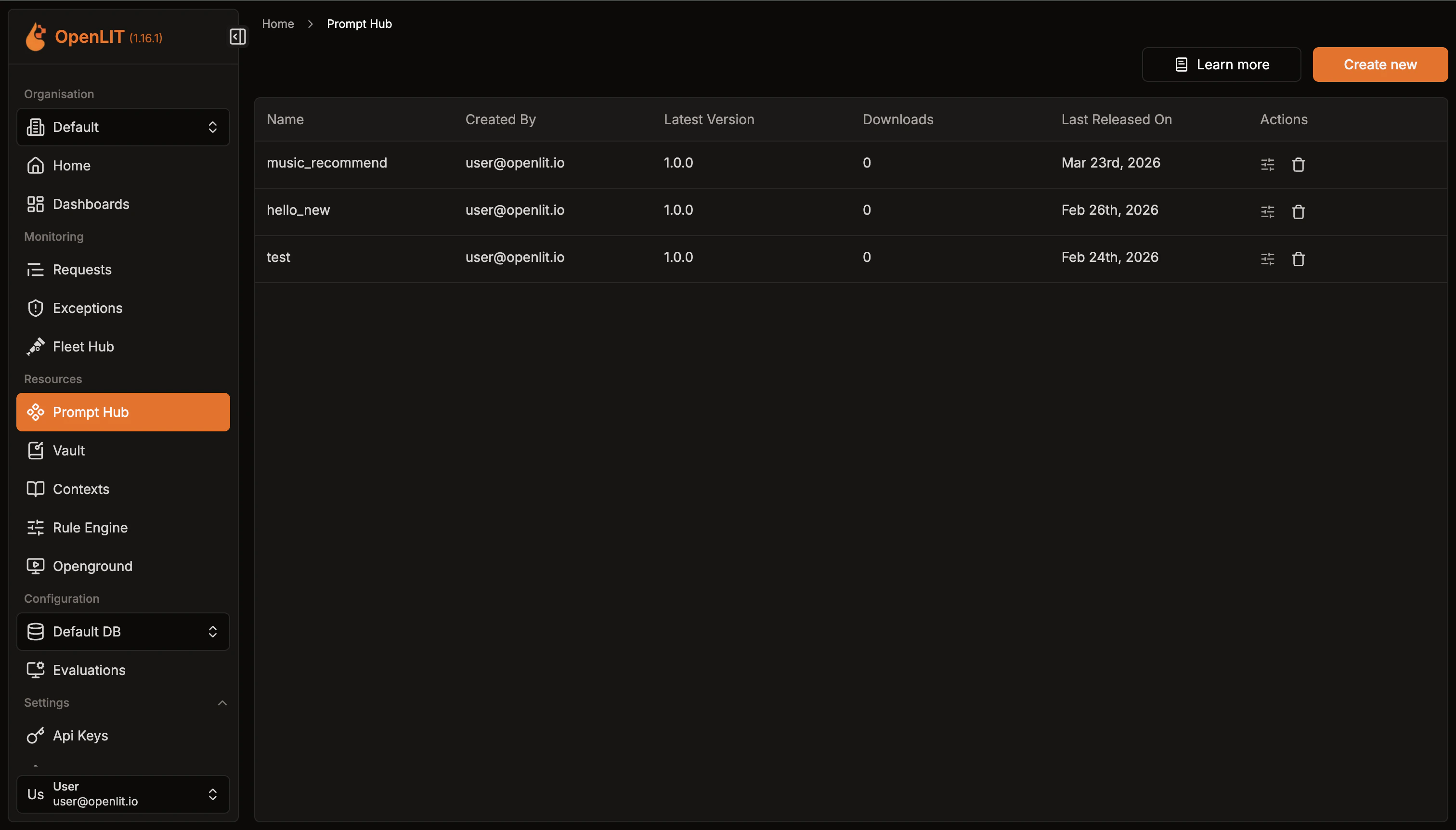
- Navigate to the Prompt Hub in OpenLIT.
- Explore the available prompts listed.
Create or edit a prompt
Build new prompts or edit existing ones with ease.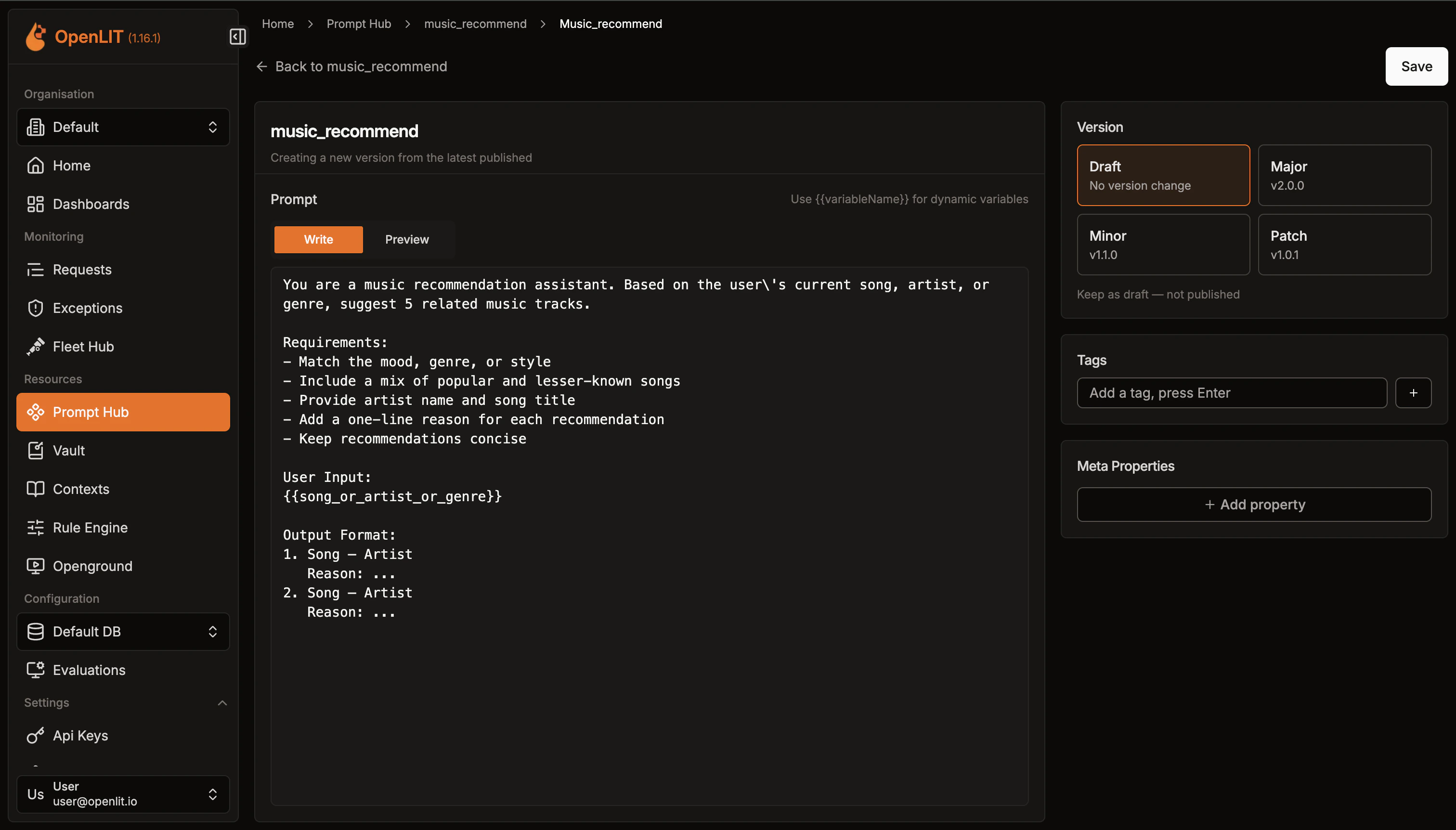
- Click on Create new button to create a new prompt
- In the prompt editor, add the prompt name, Meta Properties and use placeholders like
{{variableName}}to represent dynamic data that will be substituted when the prompt is compiled. - Specify major, minor, or patch updates for versioning as you create or modify prompts.
- Click the Otter action next to the prompt editor to review and improve the prompt before saving.
View prompt details
Once the prompt is creaetd, You can see information about the prompt along with details on all past versions.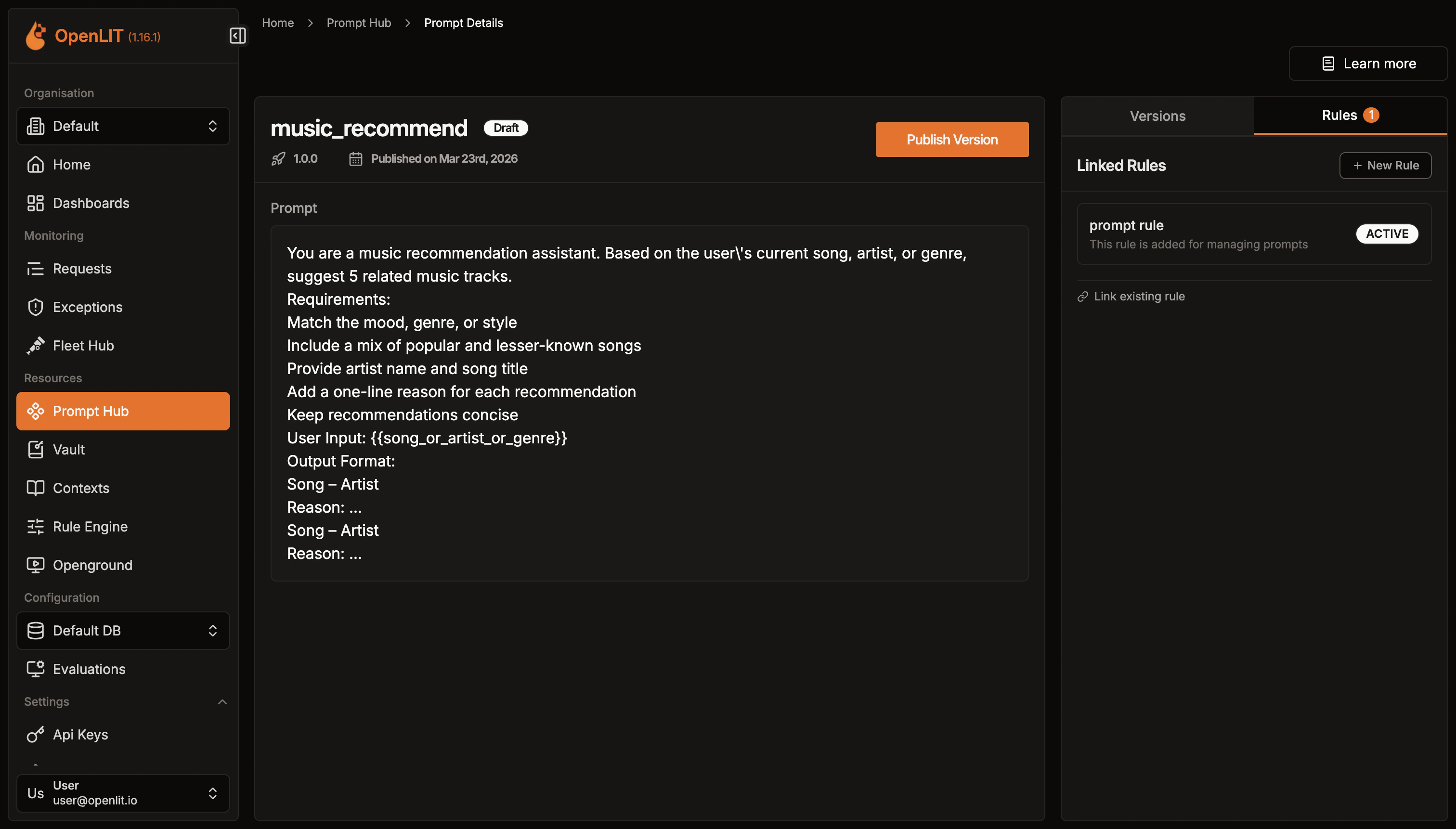
Retrieve the prompt
Create an API Key
To authenticate your requests, you need an API key. Here’s how you can create one:
- Go to the OpenLIT.
- Navigate to the API Keys page.
- Click on Create API Key.
- Enter a name for your API key.
- Save the API key displayed. Ensure you store it securely as it will be used for authentication in the SDK.
Get prompt using the SDK
- Python
- Typescript
- API
Here’s how you can fetch and compile a prompt in Python:
Output
SDK parameters
Below are the parameters for use with the SDK, formatted to indicate whether each is required or optional:| Parameter | Description |
|---|---|
url | Sets the OpenLIT URL. Defaults to the OPENLIT_URL environment variable. |
api_key | Sets the OpenLIT API Key. Can also be provided via the OPENLIT_API_KEY environment variable. |
name | Sets the name to fetch a unique prompt. Use this or prompt_id. |
prompt_id | Sets the ID to fetch a unique prompt. Use this or name. Optional |
version | Set to True to get the prompt with variable substitution.. Optional |
shouldCompile | Boolean value that compiles the prompt using the provided variables. Optional |
variables | Sets the variables for prompt compilation. Optional |
meta_properties | Sets the meta-properties for storing in the prompt’s access history metadata. Optional |
AI prompt improvement
Prompt Hub includes an inline Otter assistant for prompt review. It helps you improve prompt wording while keeping control over what is saved. Use prompt improvement when you want to:- Remove redundant wording and make the prompt more concise.
- Make instructions easier to scan and follow.
- Preserve variables such as
{{userInput}}or{{context}}exactly. - Clarify output format, constraints, and success criteria.
- Reduce ambiguity without changing the prompt’s original intent.
How it works
- Open a prompt in create or edit mode.
- Click the Otter action next to the prompt editor.
- Review the default improvement dimensions, remove any that are not relevant, or add your own.
- Run the prompt analysis.
- Review inline suggestions in the editor.
- Accept or decline each suggestion.
- Save the prompt or create a new version when you are ready.
Otter usage for prompt improvement is tracked in Otter usage reports, but review-only prompt improvement does not create normal chat conversation history.
Improve prompts from Otter chat
You can also ask Otter to review an existing Prompt Hub prompt by name or ID:Manage LLM secrets
Centrally store LLM API keys that applications can retrieve remotely without restarts
Create a dashboard
Create custom visualizations with flexible widgets, queries, and real-time AI monitoring
LLM playground
Compare cost, duration, and response tokens across different LLMs to find the most efficient model
Zero-code observability with the OpenLIT Controller
Discover and instrument LLM traffic across Kubernetes, Docker, and Linux using eBPF — no code changes required.